Inside Your PC: A Complete Guide to Modern Hardware and Diagnostic Tools
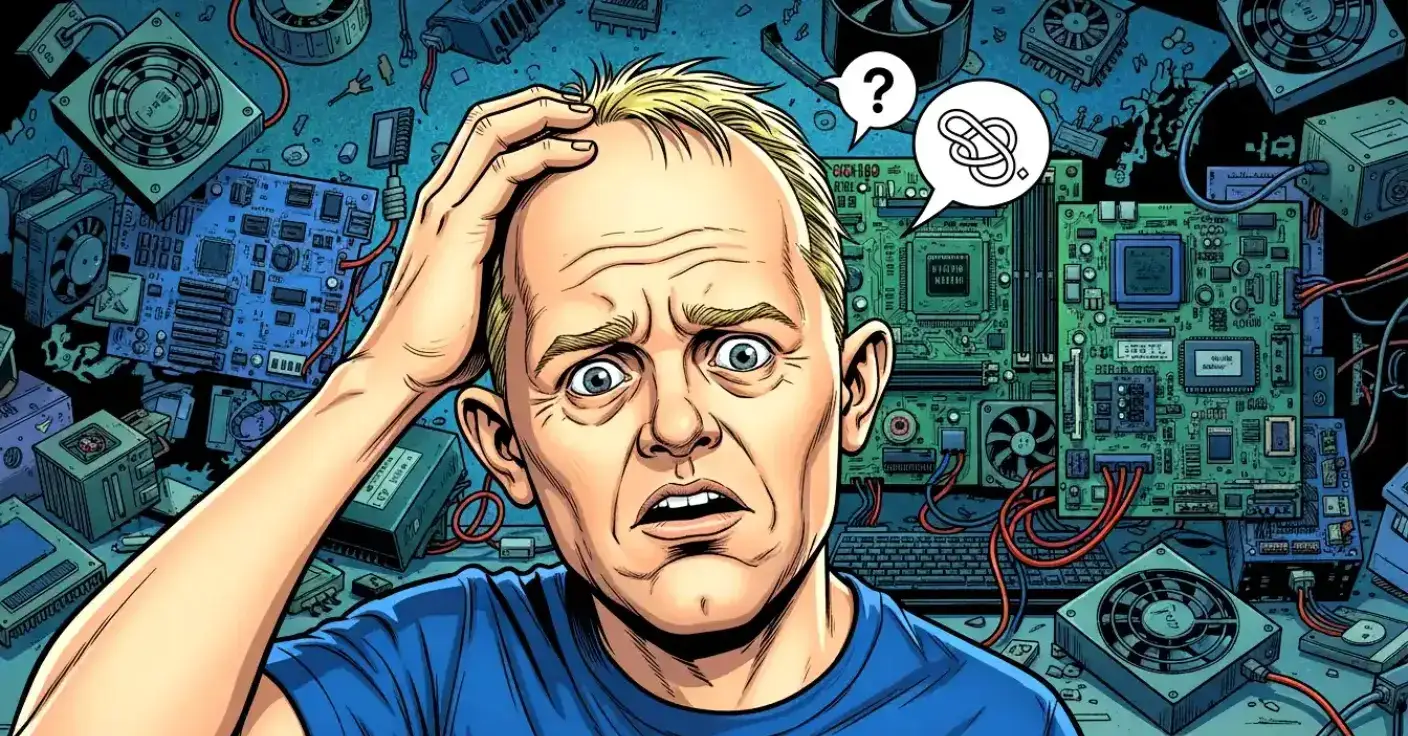
Circuit boards, microchips and cables. That’s how most people picture the inside of a computer, and to be fair, they’re not wrong. But every one of those mysterious little parts has a job to do, and together they form the machine you rely on for work, gaming, browsing, streaming, and occasionally shouting at when it refuses to update properly.
Understanding what’s inside your PC isn’t just for enthusiasts. Whether you’re troubleshooting a problem, planning an upgrade, or simply curious about what makes the magic happen, knowing your hardware gives you confidence — and possibly bragging rights if you can casually drop “thermal throttling” into conversation.
This guide walks you through the major components inside a modern PC, explains what they do, and introduces the best up‑to‑date tools for checking performance, health and stability. Everything is written in plain English, with a little humour to keep things human.
The Core Components Inside Your PC
Before diving into diagnostic tools, it helps to understand the hardware they’re reporting on. Modern PCs are built around a set of core components that work together to keep everything running smoothly.
The Processor (CPU)
The CPU is the brain of your computer. It handles instructions, calculations and general system tasks. Modern processors from Intel and AMD come with multiple cores, meaning they can juggle several tasks at once without breaking a sweat. If you’ve ever wondered why your PC feels sluggish when you open too many browser tabs, it’s usually because the CPU is politely asking you to calm down.
The Graphics Card (GPU)
The GPU is responsible for rendering images, videos and games. Even if you’re not a gamer, a good GPU helps with video editing, 3D modelling, AI workloads and even some everyday tasks. Integrated graphics (built into the CPU) are fine for basic use, but dedicated graphics cards offer far more power.
Memory (RAM)
RAM is your PC’s short‑term memory. It stores data your system needs quick access to, such as open applications and active files. More RAM means smoother multitasking. Too little RAM means your PC starts behaving like it’s wading through custard.
Storage (SSD or HDD)
Storage is where your files, apps and operating system live. Modern PCs use SSDs, which are dramatically faster than old‑fashioned hard drives. NVMe SSDs, which connect directly to the motherboard, offer even higher speeds — ideal for fast boot times and quick file transfers.
Motherboard
The motherboard is the central hub that connects all components. It determines what hardware you can install, how fast it can run, and what features your PC supports. Think of it as the PC’s road network — if the roads are slow or outdated, everything else is held back.
Power Supply (PSU)
The PSU converts electricity from the wall into power your PC can use. A good PSU ensures stable performance and protects your components. A bad PSU can cause crashes, instability, or in extreme cases, a small fireworks display you definitely didn’t ask for.
Cooling System
Modern PCs generate heat, and heat is the enemy of performance. Cooling systems — whether air coolers or liquid coolers — keep temperatures under control. Case fans help move air through the system, preventing components from cooking themselves.
Why You Need Diagnostic Tools
Even the best PC can run into issues. Temperatures rise, components age, drivers misbehave, and sometimes Windows just decides it’s had enough. Diagnostic tools help you:
- Identify hardware problems
- Monitor temperatures and voltages
- Check system stability
- Benchmark performance
- Plan upgrades
- Keep your PC running smoothly
The good news is that modern tools are far more accurate, user‑friendly and reliable than many older utilities. Below are the best options available today.
Modern Tools for Checking Your PC’s Hardware
HWiNFO — The Gold Standard for System Information
HWiNFO is one of the most comprehensive hardware analysis tools available. It provides detailed information about every component in your PC, from CPU temperatures to motherboard sensors, memory timings, fan speeds and more.
It’s updated regularly, supports all modern hardware, and includes real‑time monitoring. If you want to know exactly what’s happening inside your PC at any moment, HWiNFO is the tool to trust.
It’s also surprisingly lightweight, despite the enormous amount of data it provides. You can run it as a portable app, making it ideal for quick diagnostics.
CPU‑Z — Quick, Clear CPU and Memory Details
CPU‑Z is a small, fast utility that focuses on your processor, motherboard and RAM. It’s perfect when you need a simple overview without wading through dozens of menus.
It shows:
- CPU model, speed and core count
- Motherboard chipset and BIOS version
- RAM type, speed and timings
It’s especially useful when upgrading memory or checking whether your CPU is performing as expected.
GPU‑Z — Everything You Need to Know About Your Graphics Card
GPU‑Z is the graphics‑focused sibling of CPU‑Z. It provides detailed information about your GPU, including:
- Clock speeds
- Memory type and size
- Driver version
- Temperature and fan speed
- Real‑time load monitoring
If you’re troubleshooting gaming issues or checking whether your GPU is running correctly, GPU‑Z is essential.
CrystalDiskInfo — Check the Health of Your Storage Drives
SSDs and HDDs can fail without warning, but CrystalDiskInfo helps you spot problems early. It reads SMART data from your drives and shows:
- Drive health
- Temperature
- Error rates
- Wear levels (for SSDs)
If your drive is starting to show signs of trouble, this tool will let you know before disaster strikes.
CrystalDiskMark — Test Your Drive’s Speed
CrystalDiskMark is the go‑to tool for measuring storage performance. It tests read and write speeds and gives you a clear idea of how fast your SSD or HDD really is.
It’s especially useful when:
- Comparing drives
- Checking whether an SSD is performing properly
- Testing after upgrading to NVMe storage
FanControl — Modern Fan Management Done Properly
SpeedFan was once the king of fan control, but it hasn’t been updated in years. FanControl is its modern replacement — a powerful, actively developed tool that lets you create custom fan curves, monitor temperatures and keep your PC cool without sounding like a jet engine.
It supports a wide range of motherboards and works with most modern sensors.
3DMark — The Industry Standard for GPU and System Benchmarks
Forget 3DMark11 — the modern version of 3DMark is vastly more capable. It includes multiple benchmark tests for different types of hardware, from high‑end gaming PCs to integrated graphics.
It’s ideal for:
- Comparing performance
- Stress‑testing your GPU
- Checking stability after upgrades
- Seeing how your PC stacks up against others
Cinebench — Test Your CPU’s Real‑World Performance
Cinebench uses a real rendering workload to measure CPU performance. It’s widely used by reviewers, professionals and enthusiasts because it reflects real‑world tasks rather than synthetic tests.
It’s perfect for checking:
- CPU performance
- Cooling efficiency
- Stability after overclocking
OCCT — The Ultimate Stability and Stress‑Testing Suite
If you want to push your PC to its limits, OCCT is the tool for the job. It includes stress tests for:
- CPU
- GPU
- Power supply
- Memory
It also includes monitoring tools and graphs to help diagnose instability, overheating or voltage issues.
Conclusion
Your PC is far more than a box of mysterious components. It’s a carefully balanced system where every part plays a role — and with the right tools, you can understand exactly how it all works. Modern diagnostic utilities make it easier than ever to monitor performance, check temperatures, test stability and keep your system running smoothly.
Whether you’re a casual user wanting reassurance, a gamer chasing higher frame rates, or a tinkerer planning upgrades, the tools above give you everything you need to look after your PC properly. And the best part? Most of them are free, lightweight and easy to use.
So the next time your PC feels slow, runs hot or simply behaves like it woke up on the wrong side of the motherboard, you’ll know exactly where to start.