Effortless Ways to Transfer Files, Apps and Settings Between Windows 11 PCs
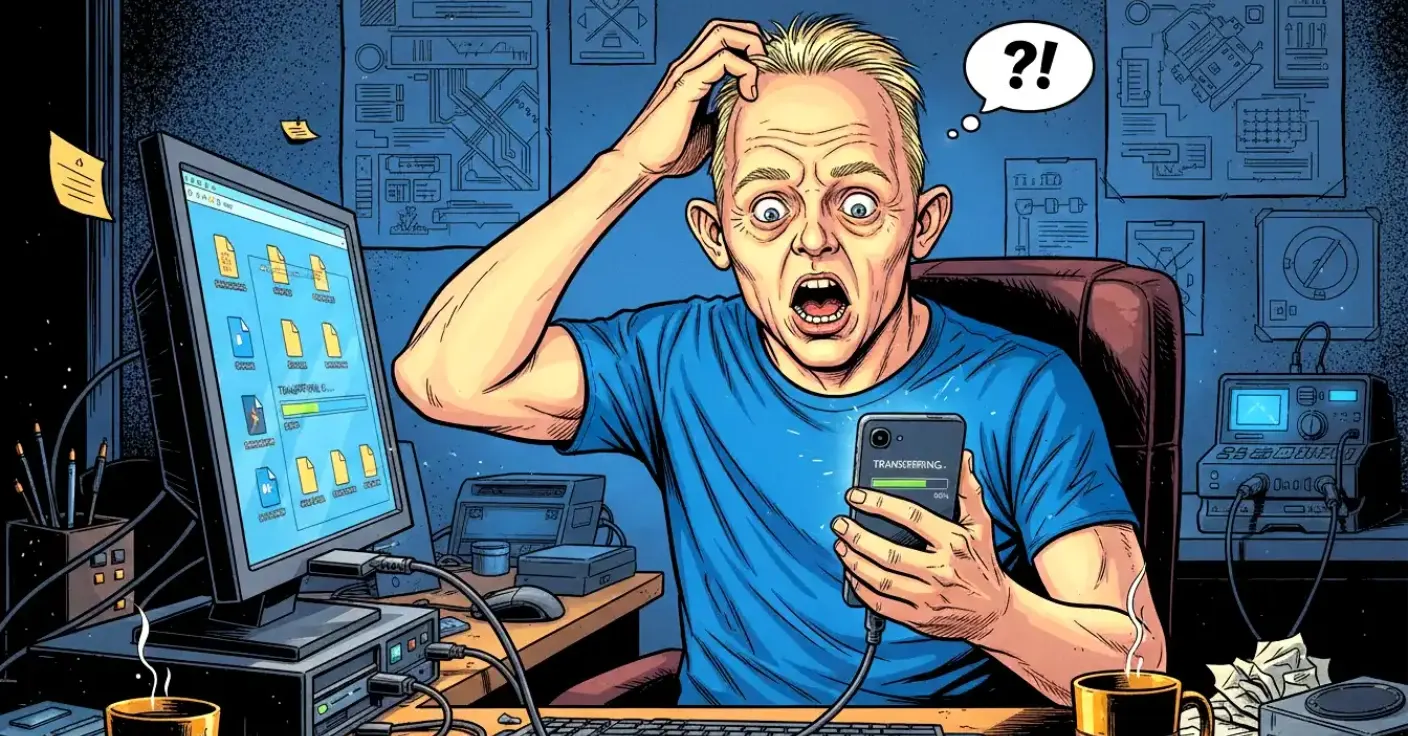
Moving to a new Windows 11 PC should feel exciting, not like a weekend-long punishment involving endless reinstallations, missing licence keys and the sinking realisation that you’ve forgotten your browser bookmarks again. Fortunately, transferring your files, settings and even installed software is now far easier than it used to be. Modern tools can migrate almost everything from one machine to another with minimal fuss, and Windows 11 itself includes several built‑in features that make the process smoother.
This updated guide walks you through the best ways to transfer your data, from simple file moves to full system migrations. It also highlights reliable software options, including EaseUS Todo PCTrans, which remains one of the most capable tools for transferring installed programs without reinstalling them. Everything here is current, relevant and designed to save you time (and possibly your sanity).
Why Transfers Matter
A new PC is a fresh start, but reinstalling dozens of applications, re‑entering passwords, restoring settings and hunting down old files can quickly turn excitement into regret. Windows 11 improves the experience with cloud syncing and streamlined setup, yet many users still need a proper migration tool—especially when moving software that doesn’t store settings in the cloud.
Whether you’re upgrading hardware, replacing a failing machine or setting up multiple PCs, a reliable transfer method ensures continuity and reduces the risk of losing important data.
Using EaseUS Todo PCTrans
Todo PCTrans remains one of the few consumer‑friendly tools capable of transferring installed software between PCs. While Windows 11 handles files and settings well, it does not natively migrate installed programs. That’s where PCTrans earns its keep.
What It Does Well
Todo PCTrans can move:
- Installed applications
- User profiles
- Documents, photos, videos and other files
- System settings
It supports Windows 11 fully and works over your local network, via an image file, or using an external drive. The interface is simple enough that even non‑technical users can follow it without fear of accidentally launching a nuclear missile.
Free vs Paid Versions
The free version allows you to transfer two applications, which is handy for testing. The paid version unlocks unlimited transfers and is designed for full PC‑to‑PC migration. Pricing is still modest and includes a licence for two PCs.
How It Works on Windows 11
- Install Todo PCTrans on both PCs.
- Connect both machines to the same network.
- Choose PC to PC Transfer.
- Select the source PC (your old machine) and the destination PC (your new one).
- Scan the source PC for apps and data.
- Tick the items you want to transfer.
- Start the migration and reboot the destination PC when prompted.
The scanning process is usually quick, and compatibility warnings are more cautious than absolute. Many programs marked “Not Compatible” still transfer successfully, though results vary depending on how the software stores its files and registry entries.
Todo PCTrans is not magic—it can’t fix broken installations or migrate extremely old software—but for most modern Windows applications, it performs impressively well.
Built‑In Windows 11 Transfer Options
While Windows 11 doesn’t migrate installed programs, it does offer several excellent tools for transferring files, settings and cloud‑synced data.
OneDrive Sync
OneDrive is integrated deeply into Windows 11. If you sign in with your Microsoft account, your Desktop, Documents and Pictures folders can sync automatically. This means many files appear instantly on your new PC without manual copying.
It also syncs:
- Edge favourites
- Personal settings
- Microsoft Store apps
- Themes and passwords (if enabled)
For users already living in the Microsoft ecosystem, OneDrive handles a surprising amount of the heavy lifting.
Windows Backup (Modern Version)
Windows 11 includes a refreshed backup tool that stores:
- Installed Microsoft Store apps
- System settings
- Wi‑Fi passwords
- Personalisation preferences
When you set up a new PC, Windows offers to restore these items automatically. It’s not a full system image, but it does streamline the initial setup.
Nearby Sharing
Nearby Sharing lets you wirelessly send files between Windows 11 devices on the same network. It’s ideal for quick transfers, though not suitable for large migrations.
Manual Transfer Methods
If you prefer a hands‑on approach—or simply don’t trust software to behave—there are several reliable manual methods.
External Drive Transfer
Copying files to a USB stick or external hard drive remains the simplest method. It’s slow for large collections, but dependable.
Network File Sharing
You can share folders over your local network and copy files directly between PCs. This is faster than using USB drives, especially if both machines support Wi‑Fi 6 or gigabit Ethernet.
NAS or Cloud Storage
If you use a NAS device or cloud services like Google Drive, Dropbox or OneDrive, transferring files becomes a matter of syncing or dragging and dropping.
Recommended Modern Software for Windows 11 Transfers
Beyond Todo PCTrans, several tools can help with specific types of migration.
FastCopy
A high‑speed file copy utility ideal for moving large folders quickly and reliably.
Macrium Reflect Free
Excellent for creating full disk images. While it doesn’t migrate installed apps individually, it’s perfect for cloning drives or restoring entire systems.
FreeFileSync
A powerful folder synchronisation tool that keeps two PCs’ folders identical. Great for ongoing transfers rather than one‑off migrations.
Ninite (for reinstalling apps)
If you prefer reinstalling software rather than transferring it, Ninite remains the safest and fastest way to install multiple programs without bundled junk.
Tips for a Smooth Transfer
A little preparation goes a long way:
- Uninstall software you no longer need before transferring.
- Clean up temporary files to reduce transfer size.
- Ensure both PCs have stable network connections.
- Back up important data separately—belt and braces never hurt.
- Keep licence keys handy for software that requires reactivation.
And remember: if something goes wrong, it’s usually not your fault. Computers occasionally behave like toddlers—unpredictable, stubborn and prone to tantrums.
Conclusion
Transferring files, settings and software between Windows 11 PCs is far easier than it used to be. With tools like Todo PCTrans, built‑in Windows features and reliable manual methods, you can move to a new machine without losing your workflow or spending hours reinstalling everything. Whether you want a full migration or just need to move a few key items, the options above will help you get up and running quickly and confidently.
If you’re upgrading your PC, take the time to plan your transfer properly. A smooth migration means you can enjoy your shiny new machine without the usual chaos—and that’s always worth the effort.