Speed Up Windows 11 Start-Up with Smarter App Management
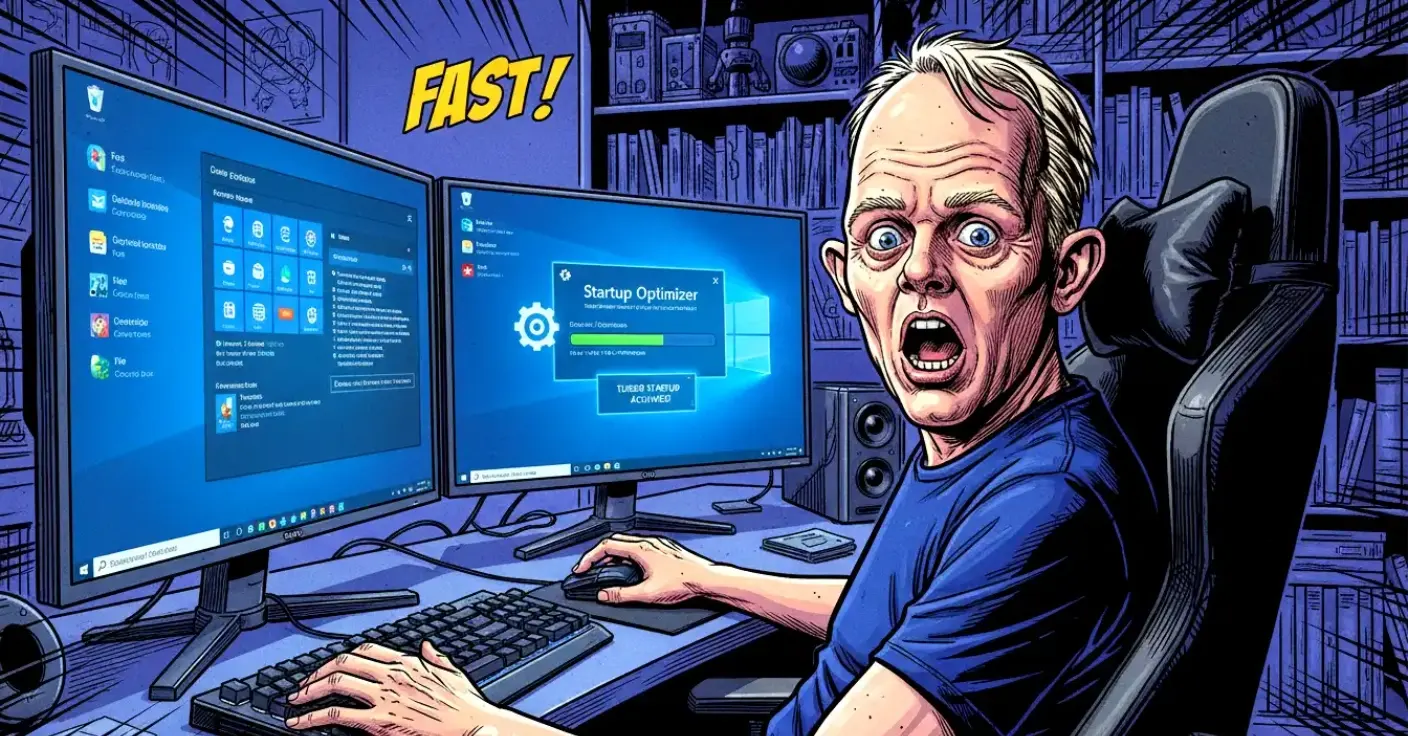
A slow start-up is one of the most irritating PC problems. You press the power button, Windows 11 begins to load, and then… it sits there, thinking about life choices. Much of this delay comes from the number of programs trying to launch at the same time. The good news is that Windows 11 gives you far more control than older versions, and modern tools make the process even easier. With a bit of housekeeping, you can shave seconds—or even minutes—off your boot time.
Start-up performance sets the tone for your entire computing session. When too many applications try to launch at once, Windows 11 has to juggle them before it can focus on anything else. This creates a bottleneck that slows down login, delays your desktop appearing, and makes your PC feel sluggish before you’ve even opened a browser.
Most users accumulate software over time. Many applications quietly add themselves to start-up without asking, and before long your PC is trying to launch cloud storage tools, messaging apps, update managers, game launchers, and assorted “helpful” utilities. Only a tiny handful genuinely need to start with Windows—your antivirus, essential drivers, and maybe a sync tool you rely on daily. Everything else can wait until you actually need it.
Built-In Windows 11 Tools
Windows 11 includes a much-improved start-up manager within Task Manager. It’s simple, effective, and ideal for most users.
Open Task Manager → Start-up Apps.
Here you’ll see a list of programs that launch at boot, along with an impact rating. High-impact apps are the ones most likely slowing you down. You can disable any non-essential program with a single click. If you later change your mind, simply re-enable it.
Windows 11 also includes Startup Apps in Settings → Apps → Startup, offering the same controls in a more user-friendly layout.
These built-in tools are reliable and safe, but if you want deeper insight, more flexibility, or advanced delay options, third-party software can take you further.
Autorun Organizer
Autorun Organizer remains a popular choice for managing start-up items thanks to its clear interface and practical features. It’s still actively maintained and works well on Windows 11.
The program displays all start-up applications in one place, making it easy to see what loads when Windows boots. You can temporarily disable items, delay their launch, or remove them entirely. Delaying non-essential apps can significantly reduce the initial strain on Windows right after login, especially if you use heavy third-party tools.
If you’re unsure what a particular program does, Autorun Organizer includes a built-in “Search the Internet” option to help you identify it. This is particularly useful when you encounter mysterious entries with names like UpdaterService.exe, which always sound slightly threatening.
The software also shows recent system load times, giving you a clear picture of whether your changes are improving performance. It’s a simple way to track progress without guesswork.
Autorun Organizer is free to download from its official site and fully supports Windows 11.
Other Useful Modern Tools
While Autorun Organizer is excellent, Windows 11 users have access to several other up-to-date utilities that can help streamline start-up and improve overall performance.
Microsoft PC Manager
A lightweight official tool from Microsoft that includes start-up management, storage cleanup, and performance monitoring. It’s safe, simple, and ideal for everyday users.
Glary Utilities
A long-standing optimisation suite with a modern Windows 11 interface. It includes start-up control, disk cleaning, and system repair tools.
Wise Care 365
A popular all-in-one maintenance tool with a strong start-up manager and clear impact ratings.
Startup Sentinel (SUS)
A small utility that monitors new programs trying to add themselves to start-up and lets you block them instantly. Very handy if you install lots of software.
These tools complement Windows 11’s built-in features and give you more control over what loads at boot.
Best Practices for Faster Start-Up
Managing start-up apps isn’t complicated, but a few sensible habits will help you avoid problems:
Keep essential items enabled.
Your antivirus, drivers, and core system tools should always remain active.
Disable non-essential apps rather than deleting them.
Disabling is reversible. Deleting can cause issues if the program relies on background components.
Delay heavy applications.
Cloud storage clients, game launchers, and large third-party utilities often benefit from delayed loading.
Check start-up after installing new software.
Many apps still sneak themselves into start-up without asking. A quick review keeps things tidy.
Avoid “miracle” optimisation tools.
Stick to reputable software. Anything promising “300% faster performance” is usually selling snake oil.
Create a restore point before major changes.
Windows 11 makes this easy, and it gives you peace of mind if something unexpected happens.
A Note on Safety
Start-up management is generally safe, but caution is wise. If you’re unsure what a program does, research it before disabling it. Windows 11 is resilient, but disabling the wrong driver or system component can cause problems. Thankfully, most start-up entries are harmless third-party apps, and modern tools make it easy to reverse changes.
Conclusion
Speeding up your Windows 11 start-up is one of the simplest ways to make your PC feel faster and more responsive. With built-in tools, modern utilities like Autorun Organizer, and a bit of common sense, you can trim unnecessary apps, reduce boot-time clutter, and enjoy a smoother experience every time you switch on your PC. A few minutes of optimisation can save you countless minutes of waiting—and who doesn’t want that?