Why Your Windows 11 PC Won’t Start – And How to Fix It
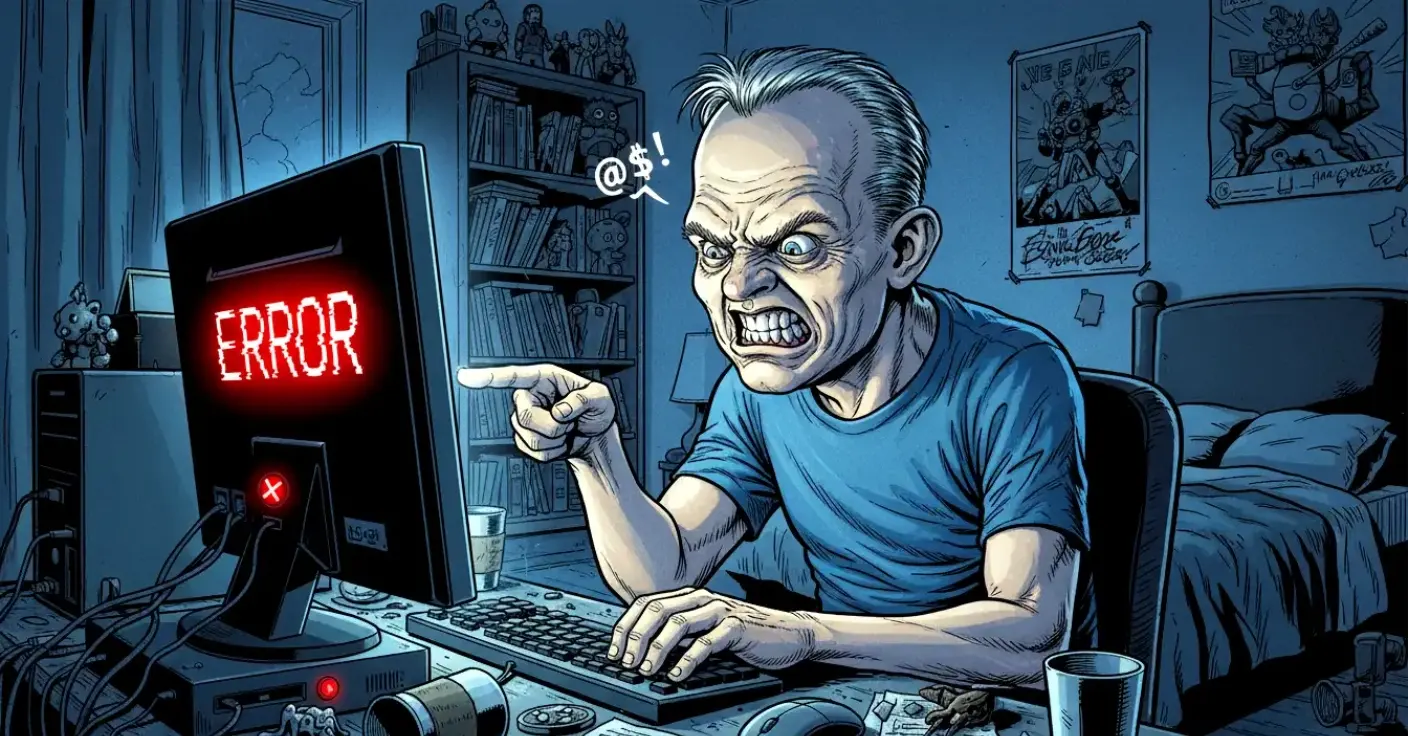
A computer that won’t start is one of life’s small horrors. You press the power button, wait for the familiar hum, and… nothing. No lights, no fans, no hopeful whirring. Just silence and your own rising panic. Fortunately, most boot failures have simple causes, and even the more complicated ones can be tackled with a calm, methodical approach.
This guide walks you through the most effective steps for Windows 11 devices, whether you’re using a laptop, desktop or tablet. The aim is to help you understand what’s wrong, what you can realistically fix yourself, and when it’s time to hand the problem over to someone else.
Start With the Basics
Before diving into software recovery or hardware diagnostics, rule out the obvious. Many “dead” computers are simply suffering from a loose cable or a battery that’s given up the ghost.
Check the following:
- Ensure the power cable is firmly connected at both ends.
- Inspect the cable for fraying or damage.
- Try a different wall socket.
- If using a multi‑plug extension, bypass it temporarily.
For laptops and tablets, the battery is often the culprit. Modern batteries degrade faster than people expect, especially under heavy use. If your laptop has a removable battery, take it out and try powering the machine using only the charger. If it starts, your battery is the guilty party.
If the battery is internal, plug in the charger and leave it for a few minutes before attempting to power on. A completely drained battery sometimes needs a moment to wake up—much like the rest of us.
When You’re Not Tech‑Savvy
If the idea of opening menus, checking BIOS settings or fiddling with recovery tools fills you with dread, there’s no shame in stepping back. Computers are complex machines, and misdiagnosing a problem can make things worse.
In that case:
- Contact the store where you purchased the device.
- If it’s still under warranty, let them handle it.
- If not, a reputable repair shop can diagnose the issue quickly.
Think of it like plumbing: you could try to fix the leak yourself, but sometimes it’s better not to flood the kitchen.
When the PC Turns On But Won’t Boot
If your device powers up but Windows refuses to load, the problem is likely software‑related. Windows 11 includes several built‑in recovery tools designed for exactly this situation.
Use Windows 11 Recovery
Windows 11 automatically launches the Recovery Environment after repeated failed boot attempts. If you see the blue recovery screen, you’re already halfway there.
Useful options include:
Startup Repair: Automatically scans for issues preventing Windows from loading.
System Restore: Rolls your system back to a previous working state. This is ideal if a recent update, driver or software installation caused the problem.
To access System Restore manually:
- Hold the power button to force shutdown.
- Turn the PC on.
- Repeat this twice more.
- On the third restart, Windows should enter the Recovery Environment.
- Choose Troubleshoot → Advanced Options → System Restore.
Boot Into Safe Mode
Safe Mode loads Windows with minimal drivers. If your PC boots here, you can uninstall problematic software, remove faulty drivers or run antivirus scans.
To enter Safe Mode:
- From the Recovery Environment, select Troubleshoot.
- Choose Advanced Options → Startup Settings.
- Restart and select Enable Safe Mode.
Could It Be a Virus?
A virus rarely prevents a computer from powering on, but it can corrupt Windows enough to stop it booting. If you suspect malware, run a scan using a trusted tool once you reach Safe Mode or the Recovery Environment.
Free, reputable options include:
- Microsoft Defender Offline
- Malwarebytes Free
- ESET Online Scanner
These tools can detect and remove stubborn infections that interfere with startup.
Hardware Problems Inside the PC
If your computer powers on but shows a black screen, freezes during boot, or shuts down immediately, a hardware fault may be to blame.
Common culprits include:
- Faulty RAM
- Damaged SSD or HDD
- Overheating components
- Loose internal connections
Desktop users can reseat RAM sticks and check internal cables. Laptop users should avoid opening the device unless they’re confident—modern laptops are notoriously fiddly.
If you hear unusual clicking, grinding or repeated beeping, stop troubleshooting and seek professional help. Those noises are your computer’s way of crying for assistance.
When You Don’t Have a Windows Installation Disc
Most modern devices no longer ship with physical installation media. Fortunately, Windows 11 makes recovery easier than ever.
Create a Windows 11 Installation USB
Microsoft provides a free tool called the Media Creation Tool, which lets you create a bootable USB drive.
You can use it to:
- Repair Windows
- Reinstall Windows without deleting files
- Perform a clean installation if necessary
This is often the quickest way to revive a stubborn PC.
Third‑Party Tools That Actually Help
Several free tools can help diagnose and repair a PC that refuses to start. These are safe, widely used and updated for modern systems.
Hiren’s BootCD PE
A modern, Windows‑11‑compatible rescue environment packed with utilities for:
- Data recovery
- Partition repair
- Antivirus scanning
- Hardware diagnostics
It boots from USB and is one of the most comprehensive free rescue tools available.
Lazesoft Recovery Suite
Still an excellent option, offering:
- Windows recovery
- Password reset
- Disk cloning
- File recovery
It’s beginner‑friendly and ideal for users who want a simple interface.
Ventoy + Rescue ISOs
Ventoy allows you to place multiple rescue tools on one USB stick. You can boot into:
- Antivirus rescue disks
- Partition repair tools
- Windows installers
- Linux‑based recovery environments
It’s a Swiss Army knife for troubleshooting.
When All Else Fails
If you’ve tried power checks, recovery tools, bootable USBs and safe mode without success, the problem is likely hardware‑related. At this point, professional diagnosis is the safest route.
Signs you need a technician:
- Burning smell
- Repeated beeping
- No lights or fan activity
- Liquid damage
- Physical impact damage
A good repair shop can test components individually and pinpoint the exact fault.
Conclusion
A computer that refuses to start isn’t the end of the world. Most issues—from dead batteries to corrupted Windows files—can be fixed with a little patience and the right tools. Start with simple checks, move on to Windows 11’s built‑in recovery options, and use trusted third‑party tools when needed. And if the problem turns out to be hardware, a professional can get you back up and running.
Your PC may be dramatic, but it’s rarely beyond saving.